Customize One-Time Passwords
On this page
This page provides information about how you can customize your magic link and code experience to best meet the needs of your application.
One Time Code Customization#
You can modify the lifetime of the code and one-time code delivered to users. By default it is 180 seconds; change this in the tenant settings:
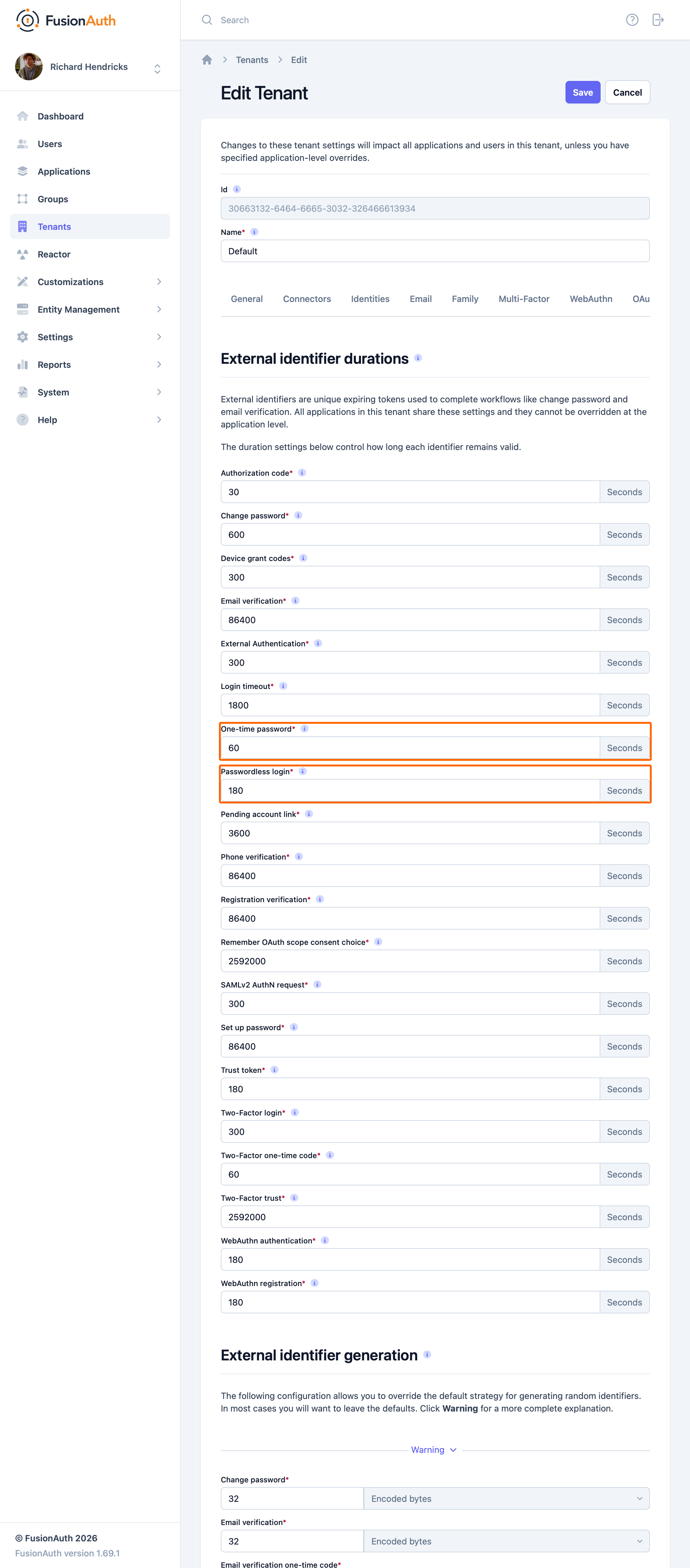
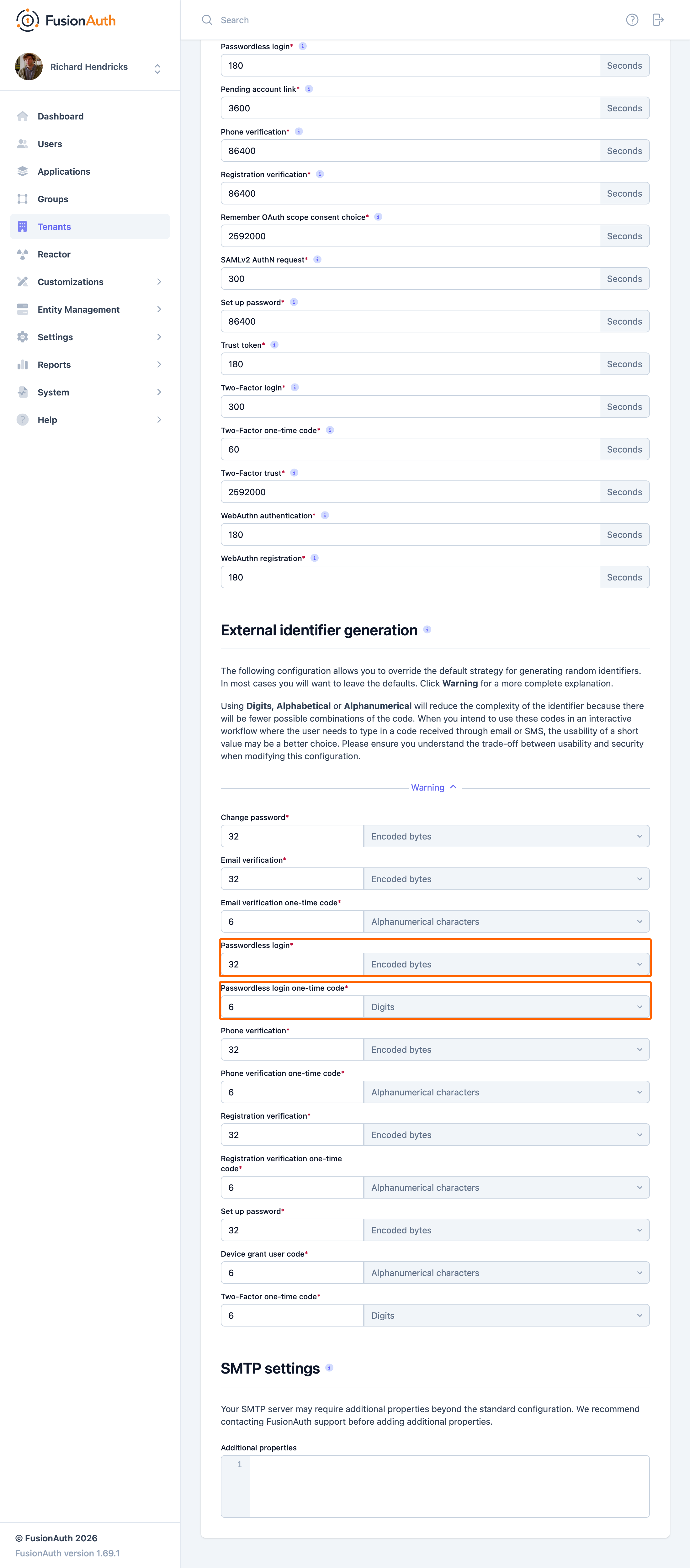
You can also change the types of the generated code and one-time code. For example, you may want your code to be only alphanumeric characters and one-time code to be numeric digits.
You may change your code length or generation strategy for security or user experience reasons. You may have requirements that specify a certain code length. For instance, for a code delivered by text message, having a user enter a six digit alphanumeric code is lot easier than a 64 byte string.
You have the following options for the code generation strategy:
- alphabetic characters
- alphanumeric characters
- bytes
- digits
Consult the Tenant API documentation for length limits, which vary based on the strategy.
Templates#
If you use FusionAuth to send one-time passwords using email or a Messenger, you must specify a template. For more information about these templates, see the email and Messenger template reference.
Email Template Customization#
You must configure SMTP for your Tenant before you can send one-time passwords via email. To configure SMTP, navigate to Tenants -> Edit -> Email .
-
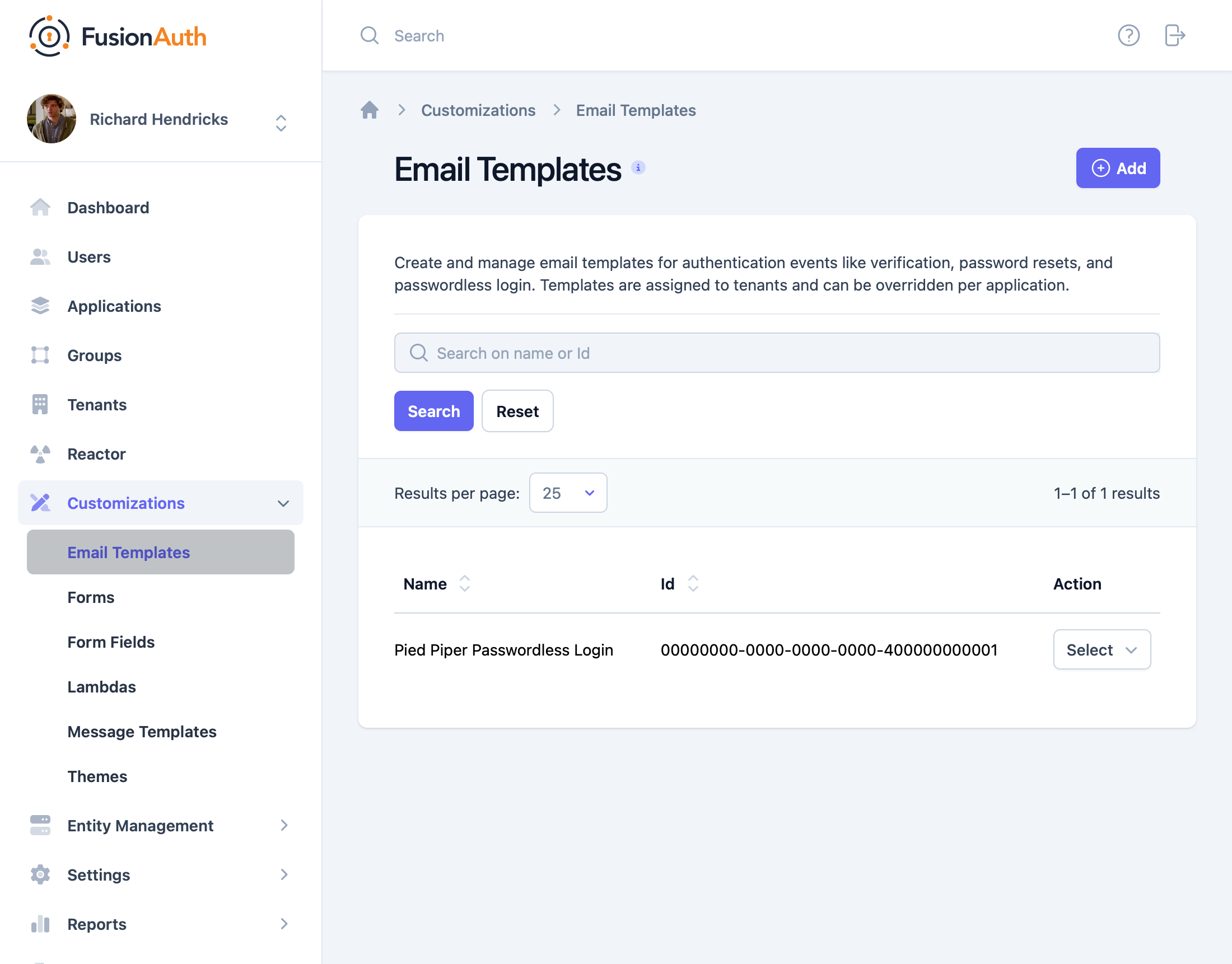
Navigate to Customizations -> Email Templates .
-
Click Add to create a new email template.
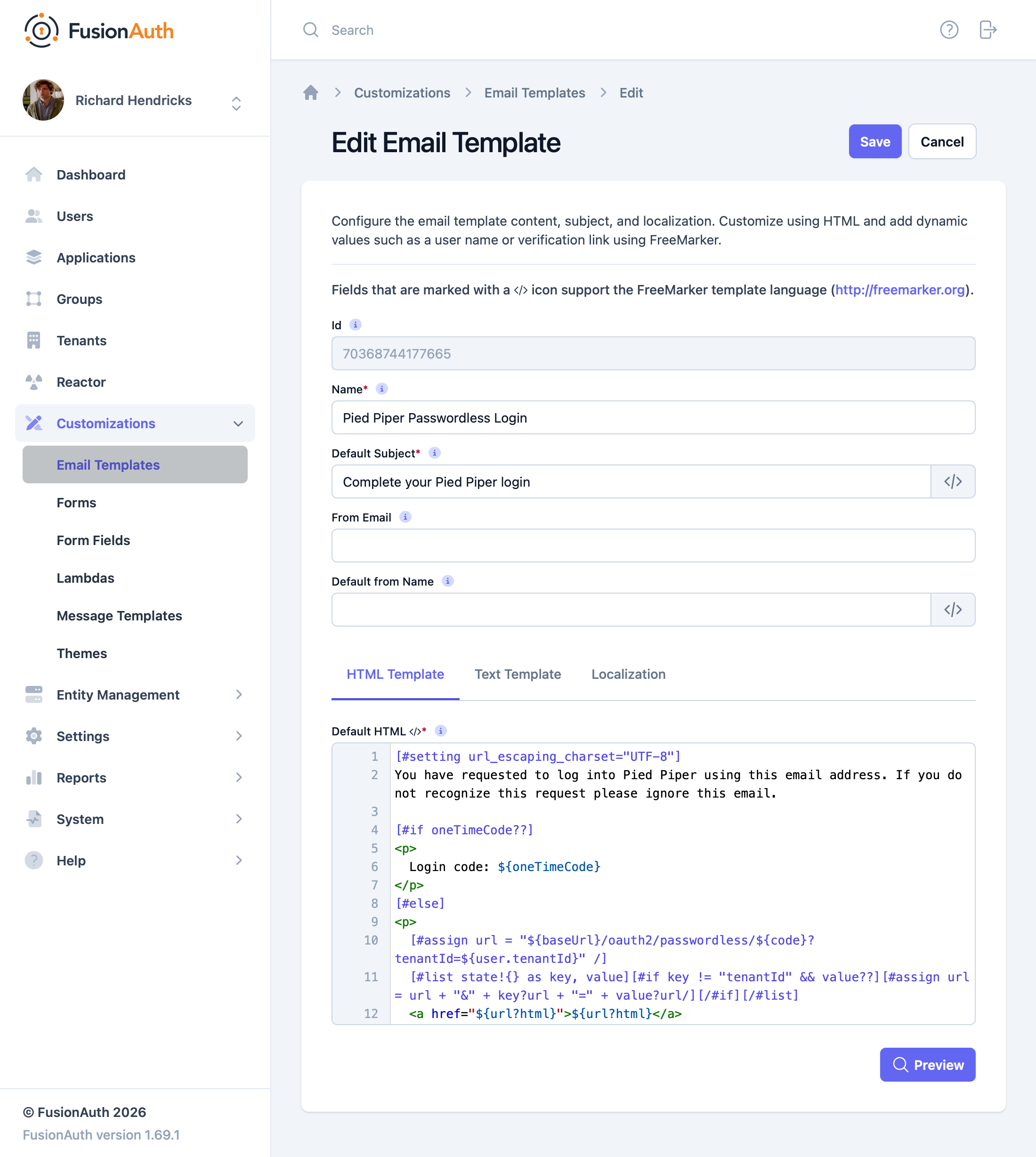
Specify both HTML and plaintext templates to ensure compatibility with all email clients. When customizing, you can use any Apache FreeMarker built-ins within the template and in the subject. The following example templates provide a good starting point that you can build upon with your own branding:
[#setting url_escaping_charset="UTF-8"] You have requested to log into FusionAuth using this email address. If you do not recognize this request please ignore this email. [#if oneTimeCode??] <p> Login code: ${oneTimeCode} </p> [#else] <p> [#-- The optional 'state' map provided on the Start Passwordless API call is exposed in the template as 'state' --] [#assign url = "${baseUrl}/oauth2/passwordless/${code}?tenantId=${user.tenantId}" /] [#list state!{} as key, value][#if key != "tenantId" && value??][#assign url = url + "&" + key?url + "=" + value?url/][/#if][/#list] <a href="${url?html}">${url?html}</a> </p> [/#if] - FusionAuth Admin[#setting url_escaping_charset="UTF-8"] You have requested to log into FusionAuth using this email address. If you do not recognize this request please ignore this email. [#if oneTimeCode??] <p> Login code: ${oneTimeCode} </p> [#else] [#-- The optional 'state' map provided on the Start Passwordless API call is exposed in the template as 'state' --] [#assign url = "${baseUrl}/oauth2/passwordless/${code}?tenantId=${user.tenantId}" /] [#list state!{} as key, value][#if key != "tenantId" && value??][#assign url = url + "&" + key?url + "=" + value?url/][/#if][/#list] ${url} [/#if] - FusionAuth AdminLocalize the email template
You can optionally localize your email templates to customize the template language for a given locale.
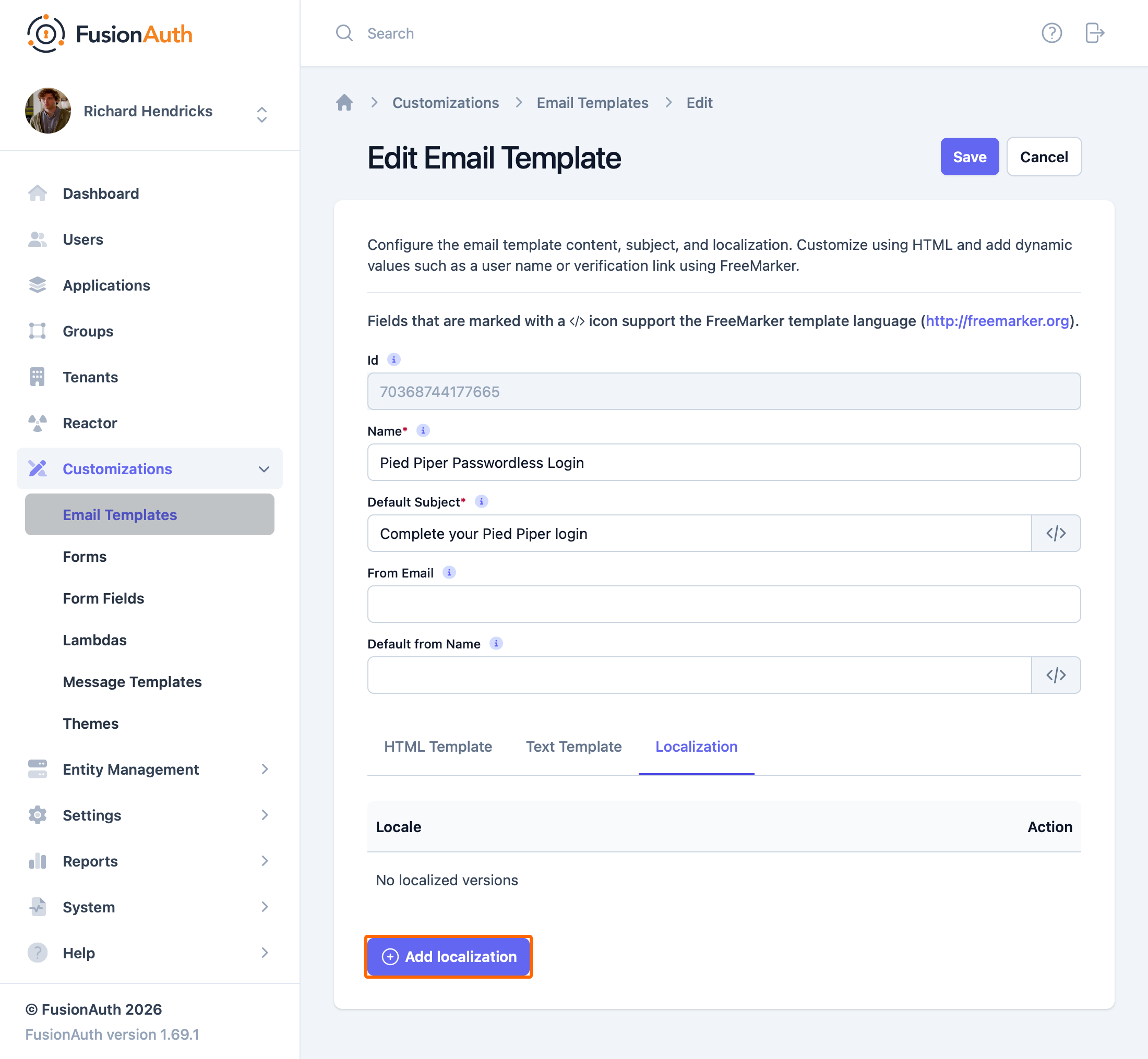
Customize email subject
The following example shows how to customize the email subject with FreeMarker with the time that the link expires:
[#setting time_zone = (user.timezone)!"US/Denver"] [#setting time_format = "h:mm a"] Expires at: ${((.now?date?long + timeToLive * 1000)?number_to_time)?string} -
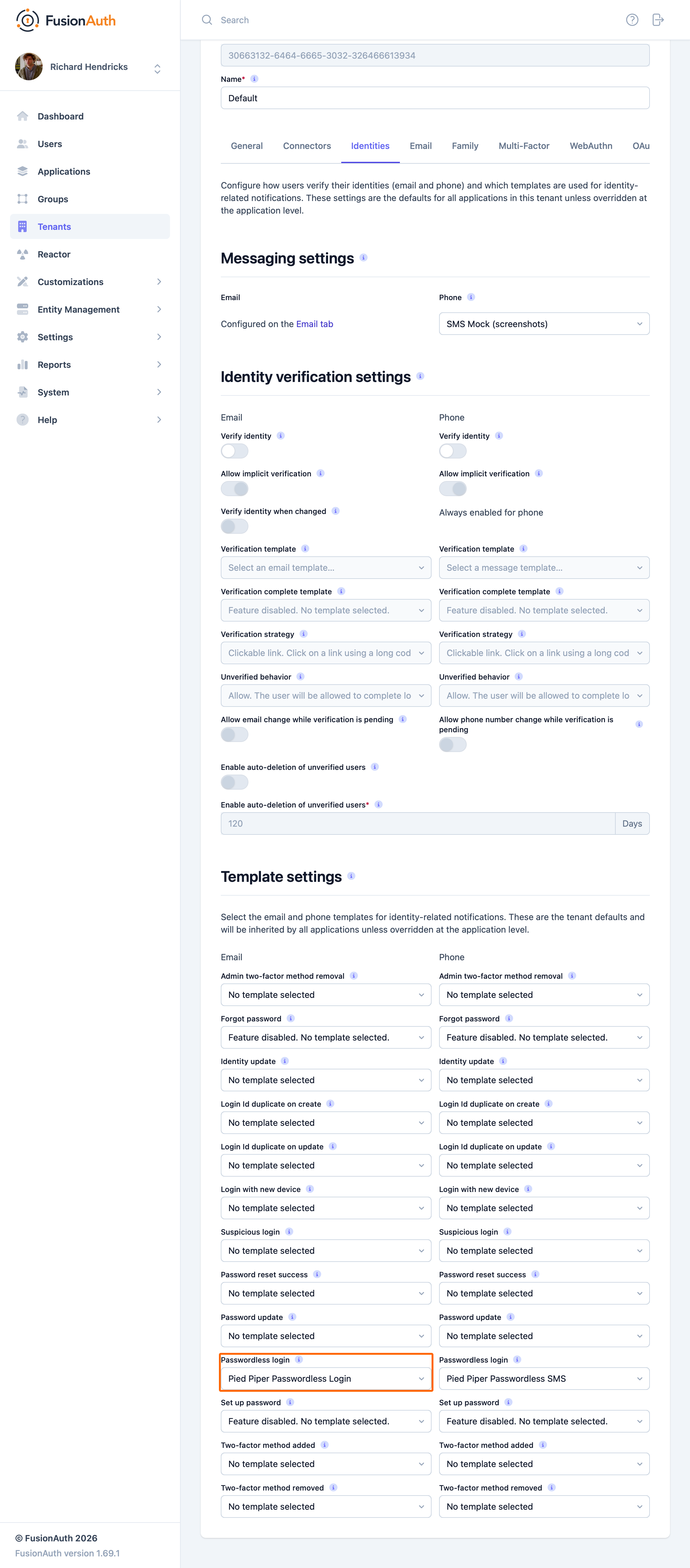
Navigate to Tenants -> Edit -> Identities -> Template Settings . In the Email column, choose your template from the Passwordless login dropdown.
Message Template Customization#
You must configure a Messenger before you can send one-time passwords to a phone. To configure a Messenger, navigate to Settings -> Messengers .
-
Navigate to Customizations -> Message Templates .
Screenshot not yet generated: passwordless-message-templates-list.png — runtake-screenshotsto generate it. -
Click Add to create a new message template.
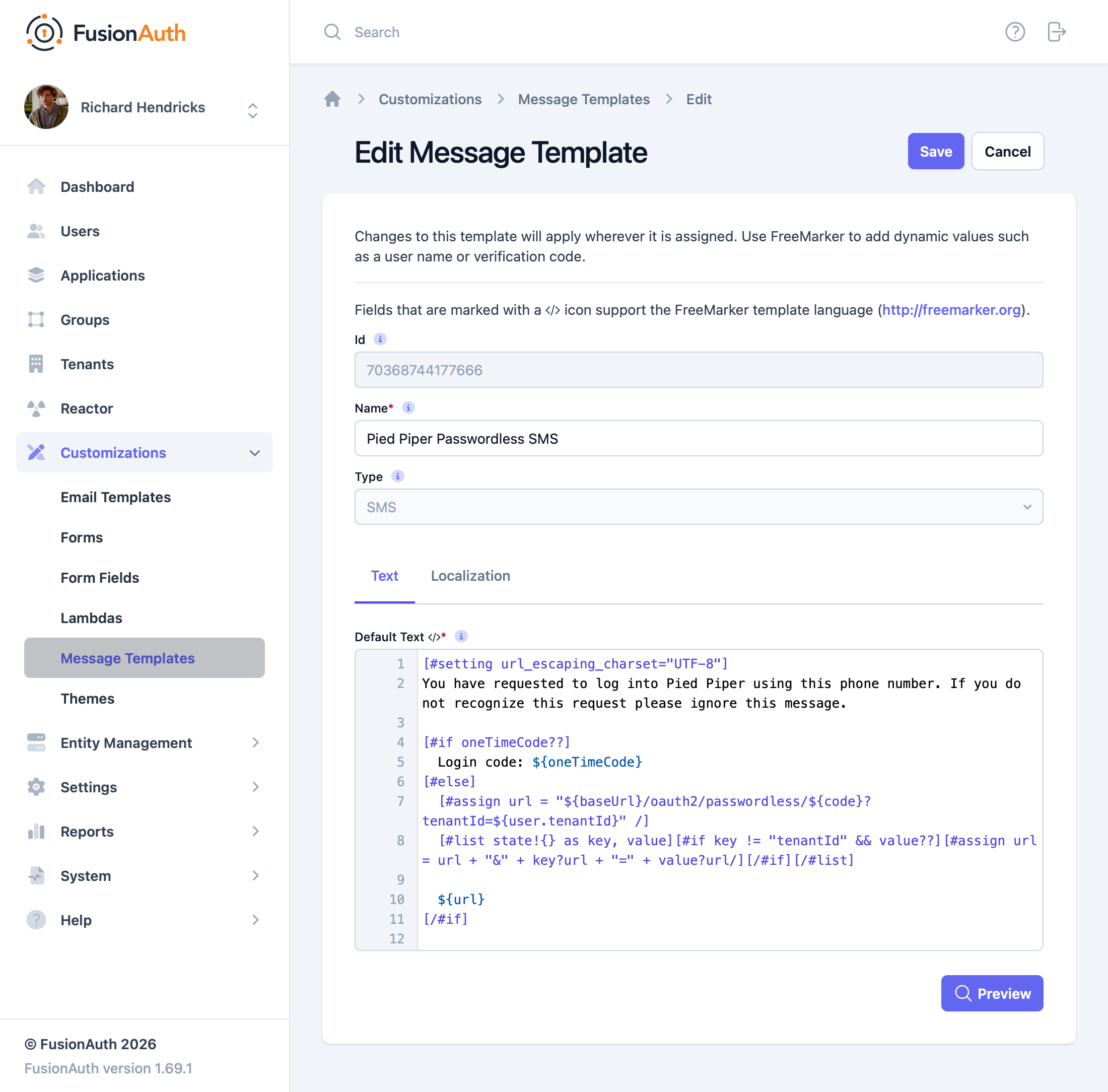
When customizing, you can use any Apache FreeMarker built-ins within the template and in the subject. The following example template provides a good starting point that you can build upon with your own branding:
[#setting url_escaping_charset="UTF-8"]
You have requested to log into FusionAuth using this phone number. If you do not recognize this request please ignore this message.

[#if oneTimeCode??]
  Login code: ${oneTimeCode}
[#else]
[#-- The optional 'state' map provided on the Start Passwordless API call is exposed in the template as 'state' --]
    [#assign url = "${baseUrl}/oauth2/passwordless/${code}?tenantId=${user.tenantId}" /]
    [#list state!{} as key, value][#if key != "tenantId" && value??][#assign url = url + "&" + key?url + "=" + value?url/][/#if][/#list]

    ${url}
[/#if]

- FusionAuth Admin
Like the Email templates, you can optionally localize your message templates to customize the template language for a given locale.
-
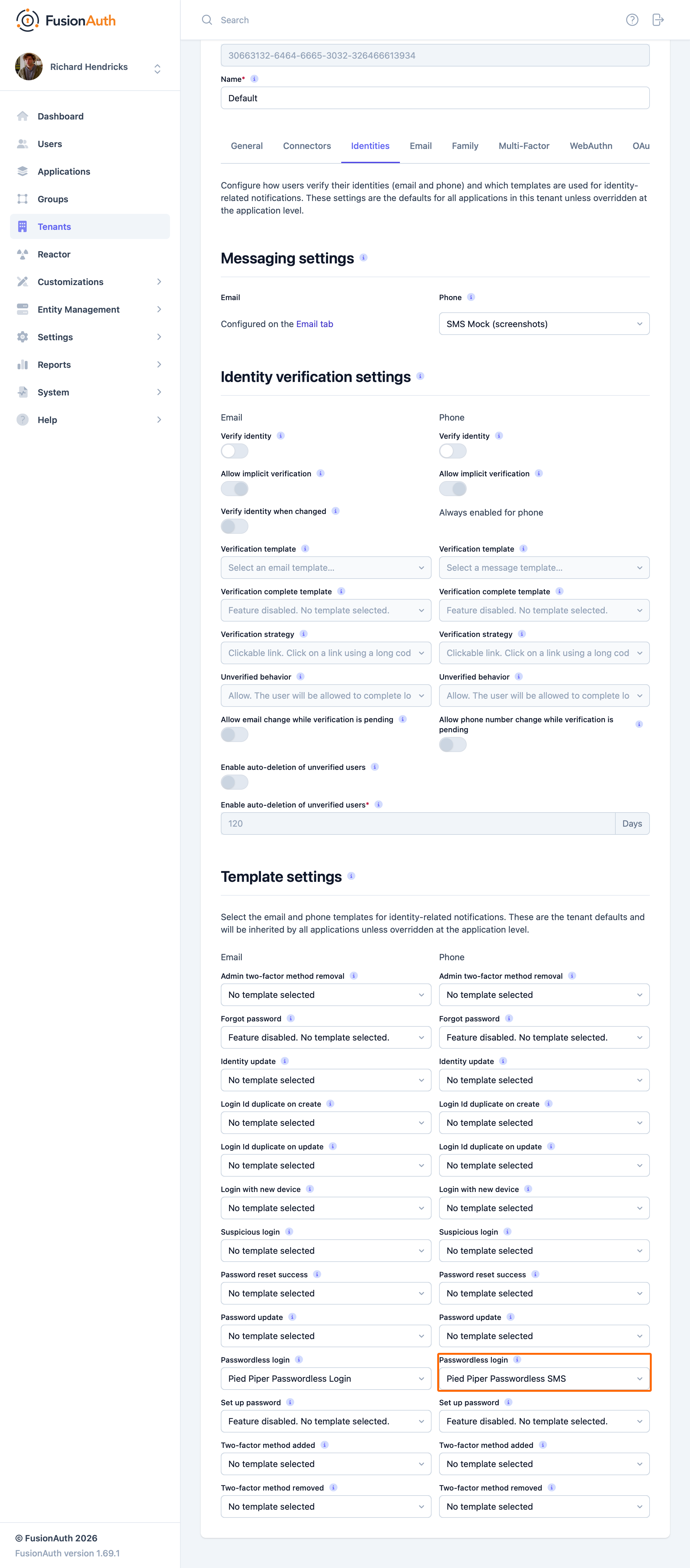
Navigate to Tenants -> Edit -> Identities -> Template Settings . In the Phone column, choose your template from the Passwordless login dropdown.
Related
Set up a passwordless experience using magic links and codes.
API documentation for the FusionAuth Complete a Passwordless Login API.
Learn about the APIs for one-time password authentication.
API documentation for the FusionAuth Send Passwordless Login API.