Add Email as a second factor
On this page
This feature requires at least a Starter plan.
1.26.0
Email two-factor is not enabled by default. Configure your tenant by navigating to Tenants -> Edit Tenant -> Multi-Factor .
Enable MFA method on Tenant (Admin Facing)#
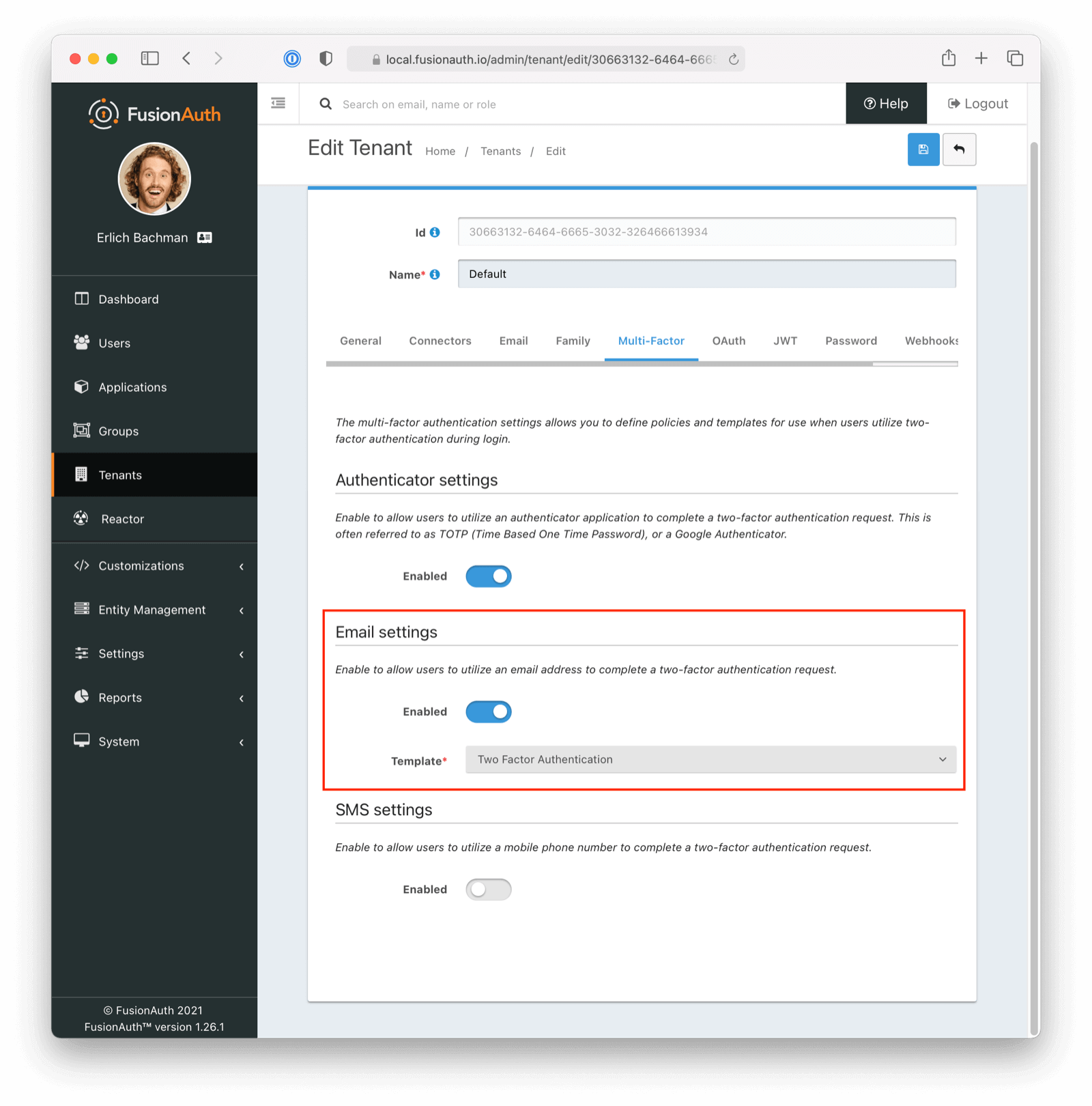
You can enable SMS MFA on the tenant level by following these steps:
- Toggle this MFA method by clicking
enabled - Select a two-factor authentication template (FusionAuth ships with a default to be customized if needed)
Enable Email Factor from Account Management (User Facing)#
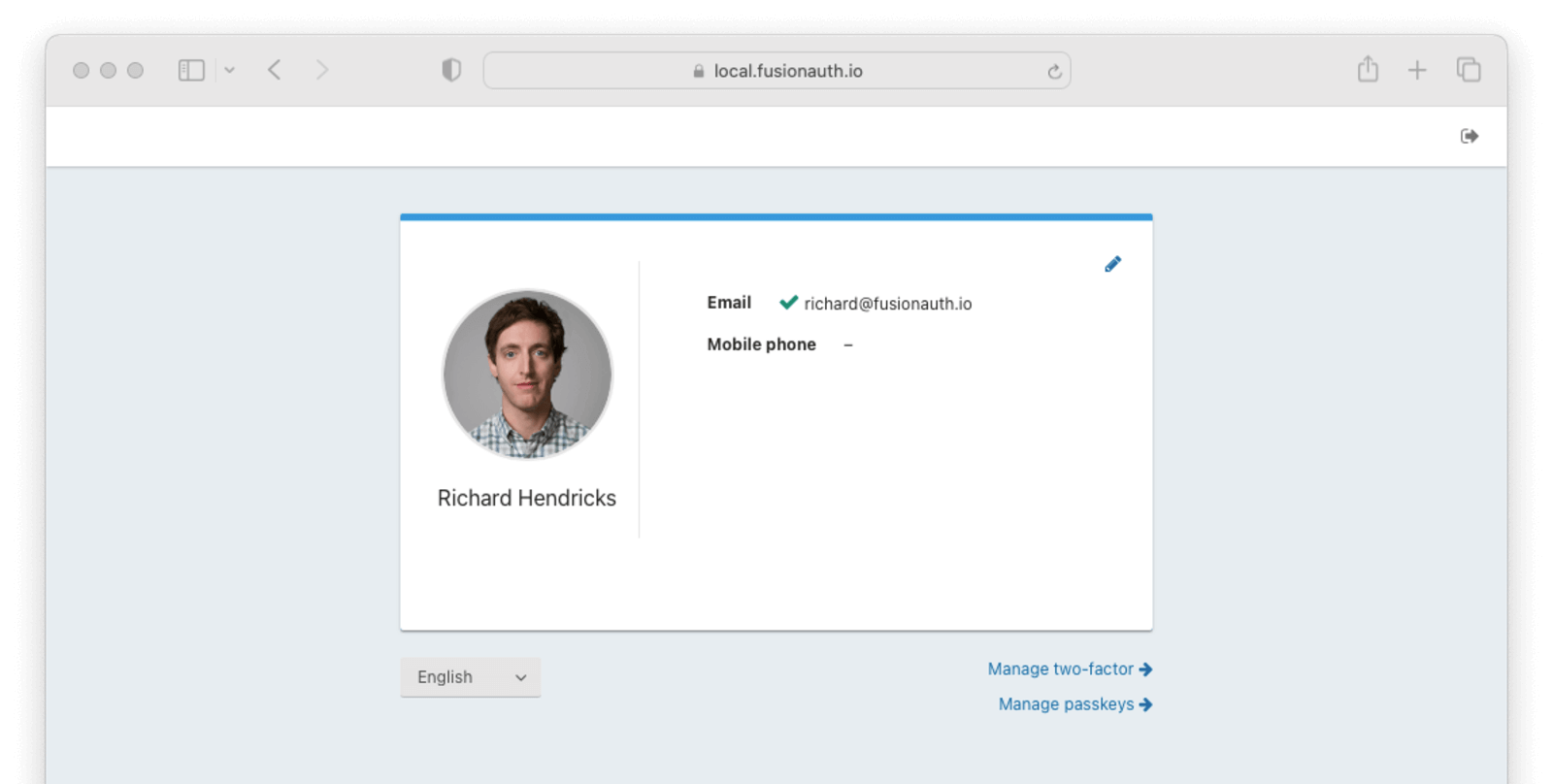
- Navigate back to your account page.
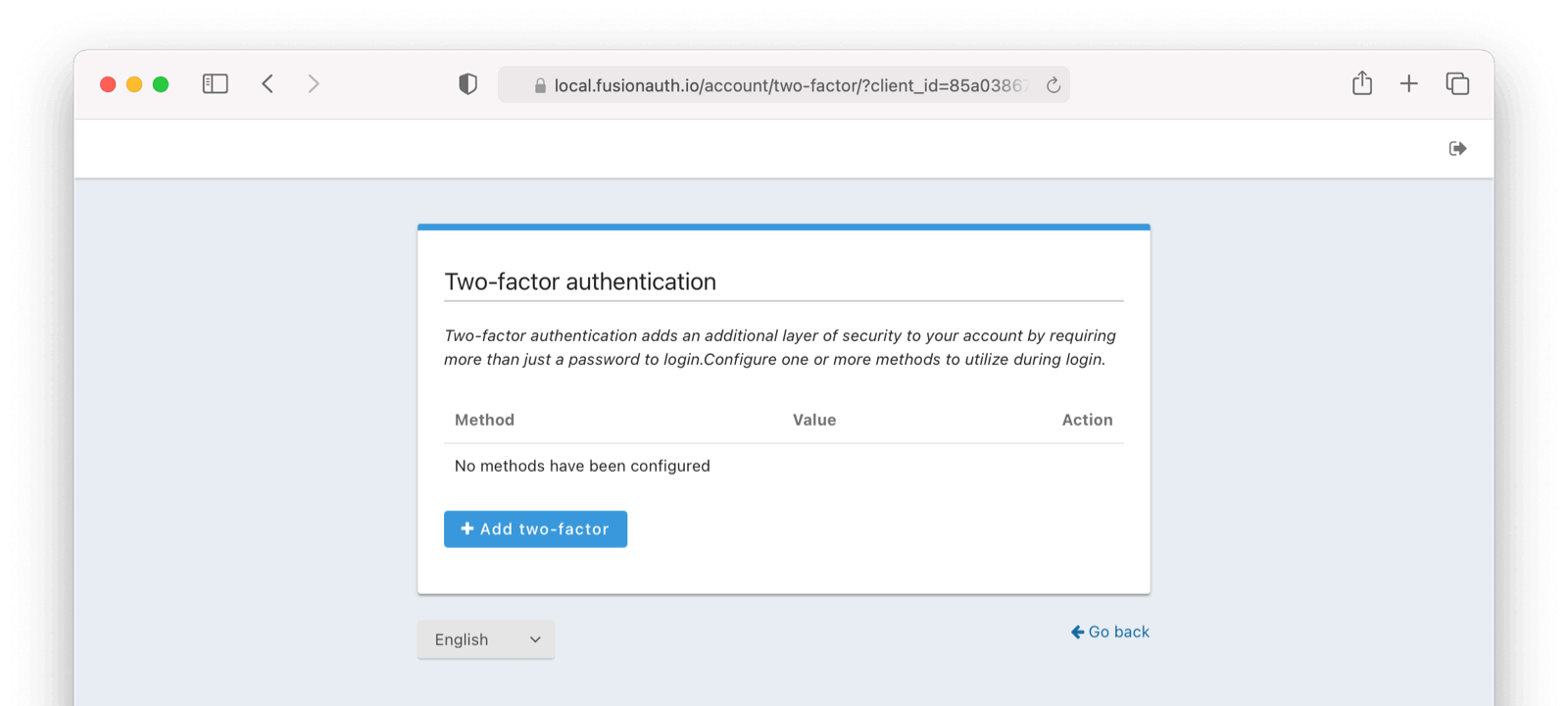
- Click Manage two-factor
- Click Add two-factor
- There will be an option for Email.
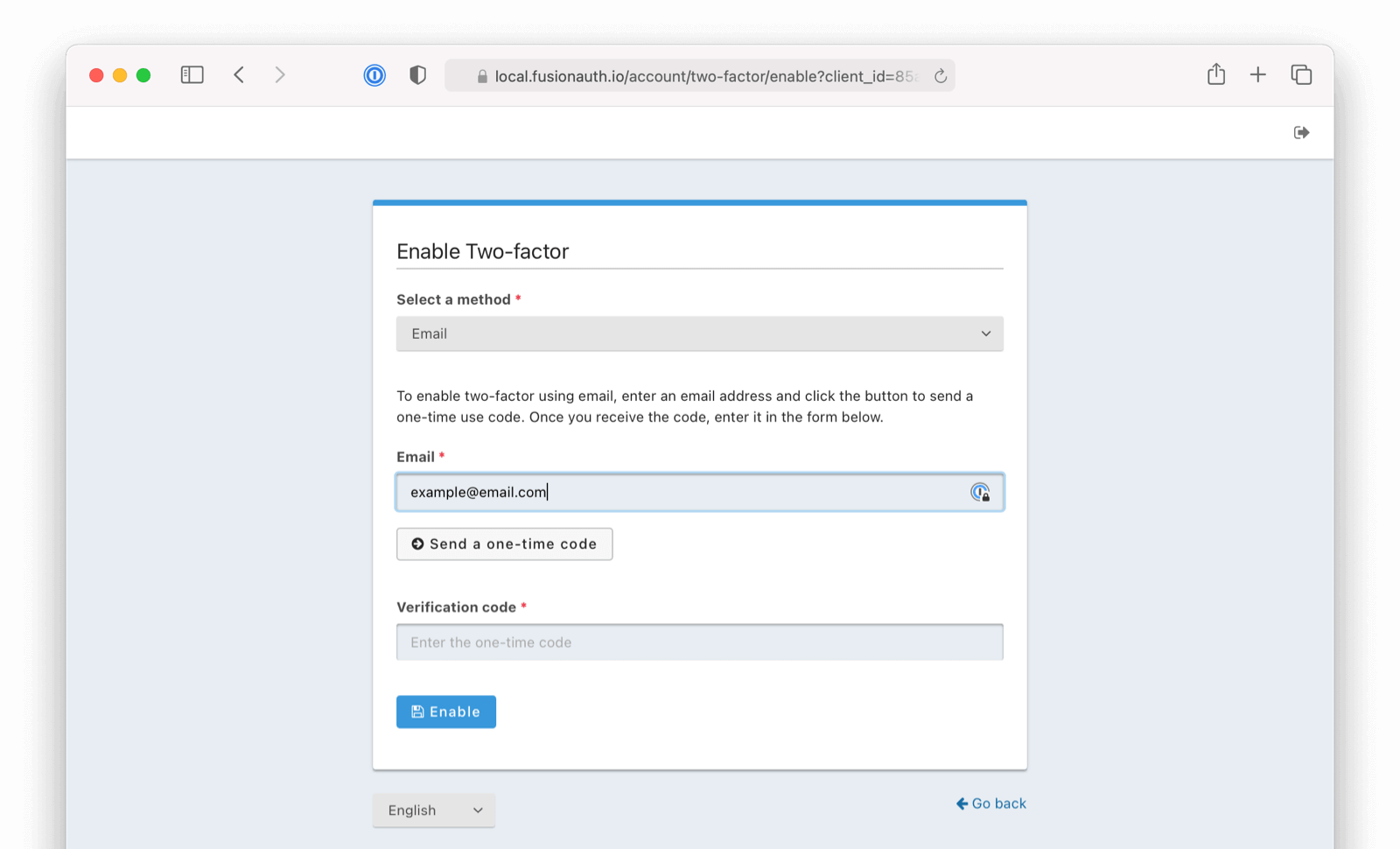
Next,
- Enter your email address.
- Click on
Send a one-time-code. - (Optional) Enter a name for this method (for example,
Work email). - Enter the provided code.
- Click Enable
Recovery Codes (User Facing)#
Now you will be presented with recovery codes. Save these in a safe space.
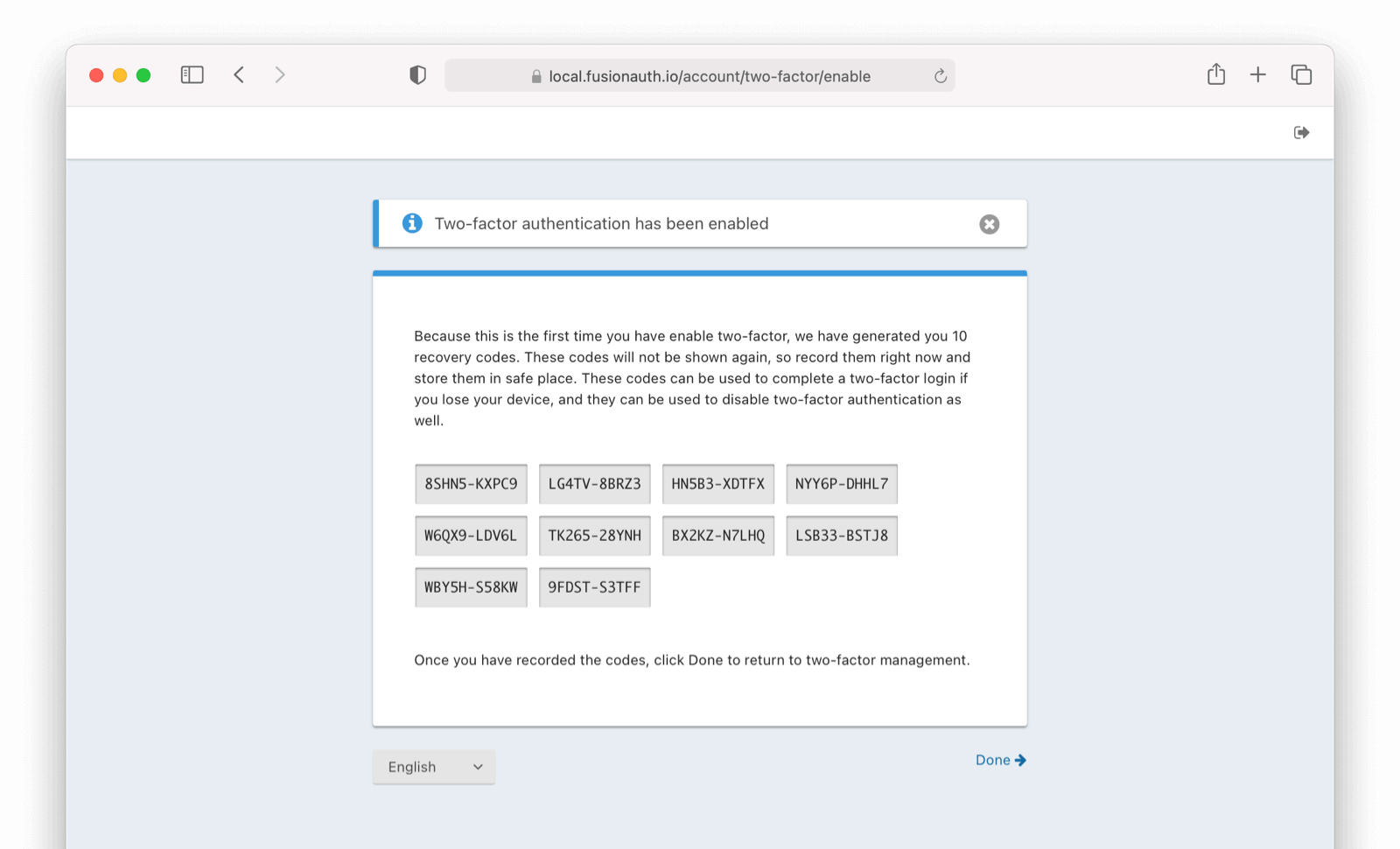
Success!
Upon the next login, you will be prompted for an emailed code in addition to your password.
See It in Action (User Facing)#
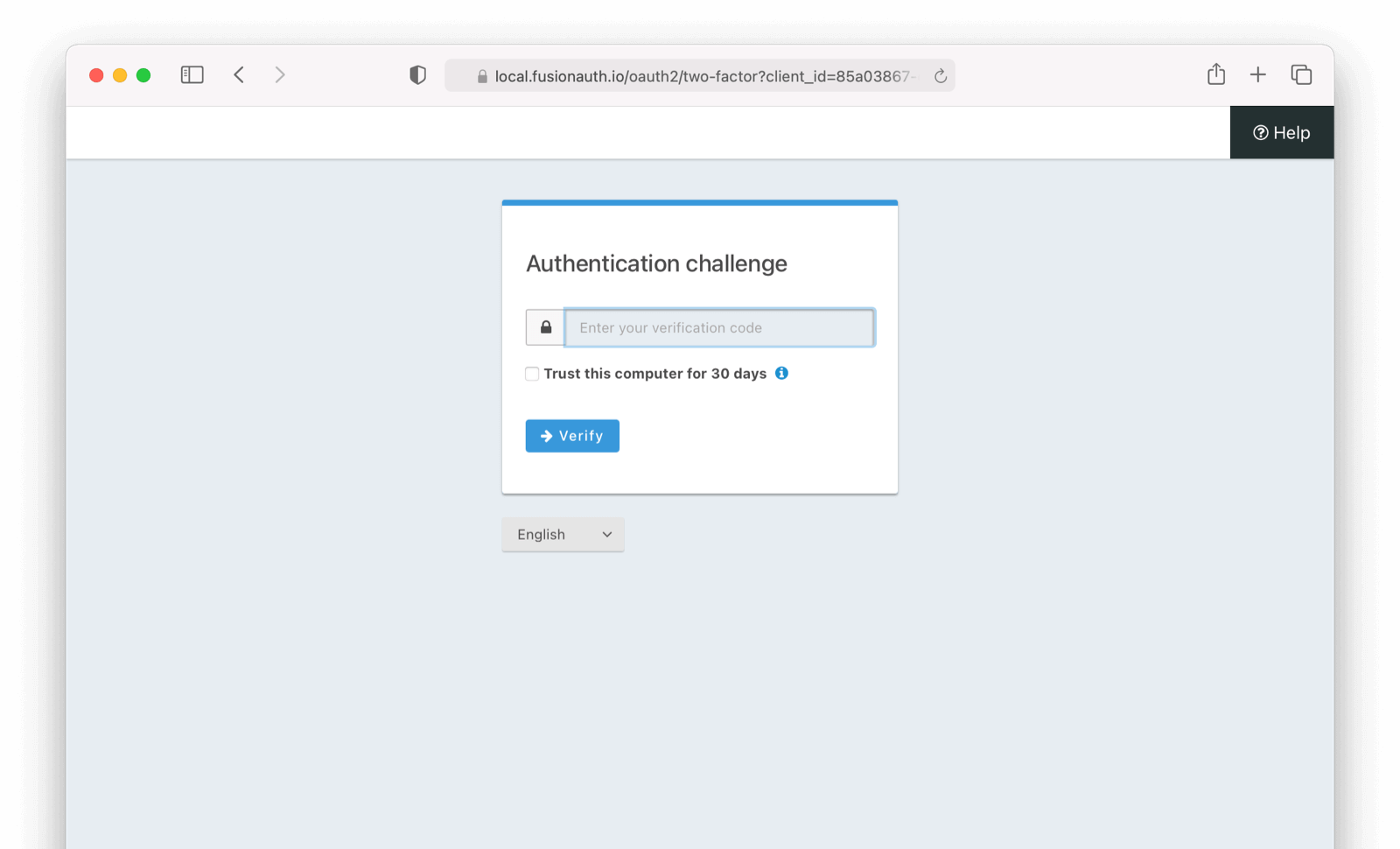
With email MFA enabled, if you log out and log back in you will be presented with the following screen in addition to the typical login screen.
Related
API documentation for the FusionAuth Disable Multi-Factor API.
API documentation for the FusionAuth Enable Multi-Factor API.
API documentation for the FusionAuth Generate a Secret API.
API documentation for the FusionAuth Generate Recovery Codes API.